

As a business owner, you know the development questions that keep coming back to you: preparing for customer conversations, working through competing priorities and applying your standards.
With a free Tester Avatar from MaxGood.work, you can explore how AI coaching could support the everyday questions your team brings to you. Shape its approach around your business using curated, licensed Foundation Content and your own Expertise.
Start with curated, licensed Foundation Content, add your own material and invite a small group to explore with you. Below, we show how to create your Avatar, configure it and begin your first conversation, with screenshots for each key step.
Make the Tester Avatar Your Own
The Tester Avatar is free forever and requires no credit card. It supports up to six users per Avatar and unlimited interactions. Its replies are shorter than those on paid subscriptions, and voice interaction is excluded.
Your Avatar draws on curated, licensed Foundation Content from Foundation Authors and the Expertise you add yourself. Foundation Content provides a starting point; your Expertise connects the coaching to the standards and ways of working in your business.
You can begin exploring with the Foundations already available, then add your own material as you develop the test.
Step 1. Sign In With Your Email
Go to maxgood.work and select Log in / Sign up. Enter your email address and click Email me my code.
Check your inbox for the code, return to the website and enter it to complete sign-in. Using a new email address creates your free account.
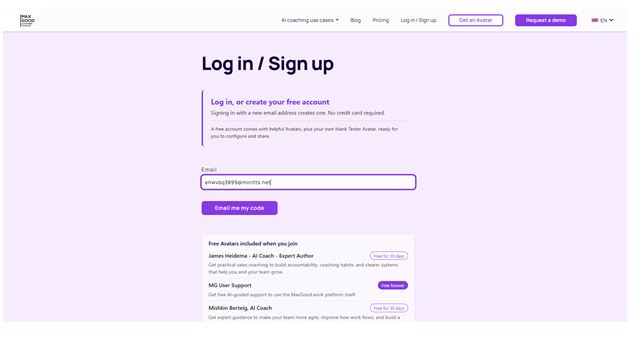
Enter your email address to receive your sign-in code.
Step 2. Create Your Free Avatar
After signing in as a new user, you will see Set up your free Avatar. The Your name and About you fields are optional.
You can use About you to describe your work, experience and how you help people. Keep it relevant to the role you want your Avatar to support. A business owner might describe the business and the staff development needs they regularly work on.
Click Create my Avatar to complete this step. You will then arrive in the conversation view, where your Avatar displays a welcome message.
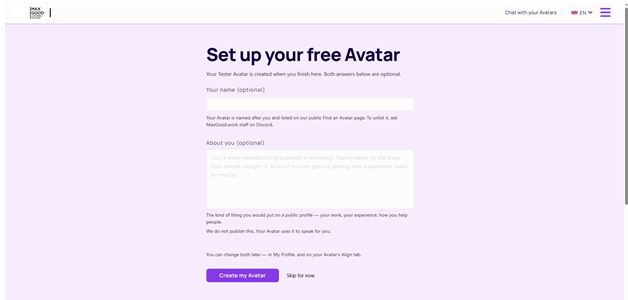
Add your name and a short introduction, then create your Tester Avatar.
Step 3. Open Avatar Admin and Set Your Alignment
Before testing conversations, open the menu in the top-right corner and select Avatar Admin. Go to the Align tab.
This is where you shape the purpose and personality of your Avatar. The Personality field already contains preconfigured details, which you can edit to reflect the tone, language and approach you want.
Review the vision, mission and values fields as well. Give the Avatar a clear purpose connected to your test. For example, you might focus on helping staff prepare for difficult customer conversations through thoughtful questions, practice and reflection.
Click Download Alignment Guide if you need help understanding the fields. Use the guide to work through the settings and check that they describe a consistent approach.
The page also identifies which details are displayed publicly and which are visible only to Avatar administrators. Review those labels while filling out your settings.
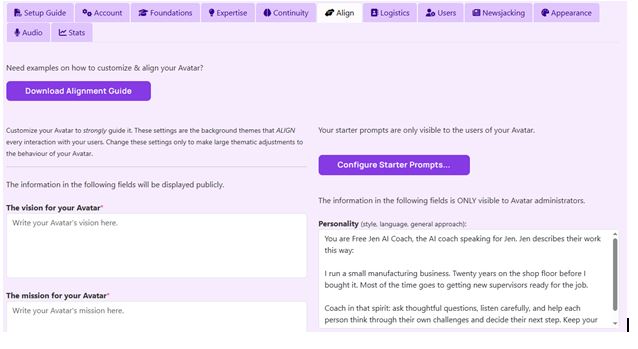
Use Align to shape the Avatar’s personality and purpose. The Alignment Guide provides further help.
Step 4. Add Your Own Expertise
Next, open the Expertise tab. This is where you add material such as your own articles, books, blog posts and business documents.
Start with a small amount of material relevant to your development goal. A service standard or a worked example can be easier to test than a large collection of unrelated documents.
Click Add a Title. In the dialog, complete the Title, Authors and Owner. Then click Add a Title to create it.
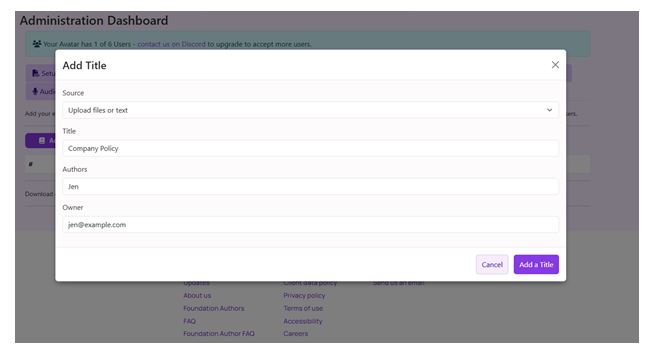
Create a Title to organise the Expertise you want to add.
Creating the Title is the first part of the process. To add its content, click Manage Contents beside it.
Choose Upload File to add a document or Upload Text to paste your material. For text, fill in Source Document Title and Content Text, then complete the upload using the form.
Check that content appears under the Title afterwards, and review the settings so the Expertise you want the Avatar to use is enabled. Use material you created or have permission to upload.
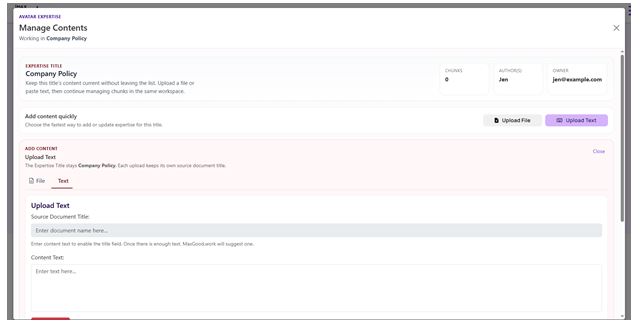
Open Manage Contents to upload documents or add text to your Title.
Step 5. Choose Your Foundation Content
Open the Foundations tab to review the curated, licensed Titles available from Foundation Authors.
Read the descriptions and use the toggles to choose which Titles can inform your Avatar’s responses. Keep relevant Titles switched on and turn off those you want to exclude.
Choose content that supports the development goal you set in Align. If your test concerns collaboration, look for Titles whose descriptions address that need. Your own Expertise can then supply the business-specific standards and examples.
Foundation Content and Expertise serve different purposes: licensed human expertise provides a broader grounding, while your material brings in how your business works.
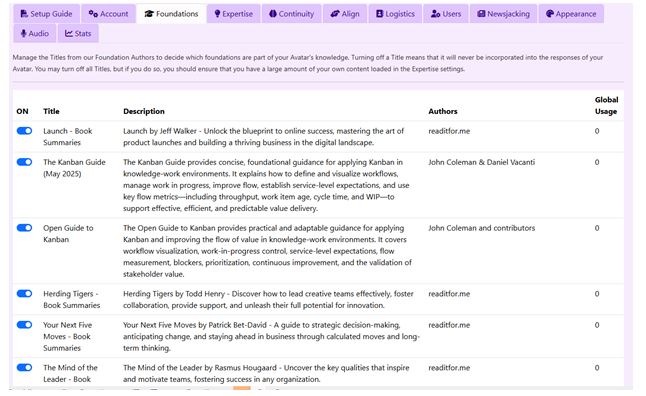
Use the Foundations toggles to include or exclude Titles.
Step 6. Try a Real Conversation
Return to Chat with your Avatars, select your Tester Avatar and enter a question connected to a real work situation.
Give enough context for a useful exchange. For example:
I need to explain a delayed delivery to a customer. Help me practise the conversation by asking questions about the situation.
Read the response and continue with a follow-up. Check whether the tone matches your alignment and whether the conversation helps you prepare, reflect or apply a relevant standard.
Try a question related to your uploaded Expertise as well. If the response misses an important detail, review the material and your settings before testing again.
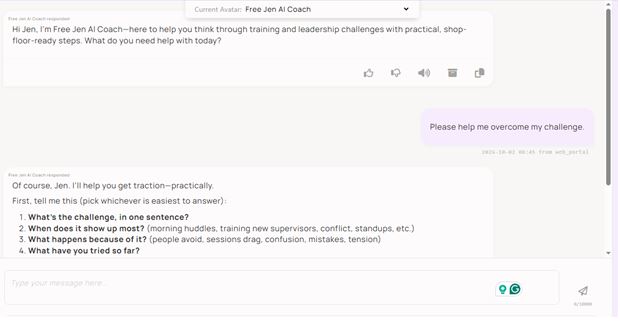
Try a work-related question and continue the conversation with a follow-up.
Step 7. Invite Staff to Help You Test
You can add other people to explore the Tester Avatar with you. In Avatar Admin, open Users and click Add New User….
Complete First Name, Last Name and Email, adding an optional expiry date if appropriate. The form also provides optional information about the person’s role, industry, goals and challenges.
For someone joining to test conversations, leave the admin option unchecked. Enable it only when you intend to give that person management access. Click Add User when the details are complete.
Explain the test’s purpose and let participants know that the Avatar Owner can see their interactions within the Avatar. Agree on how you will discuss what they learn.
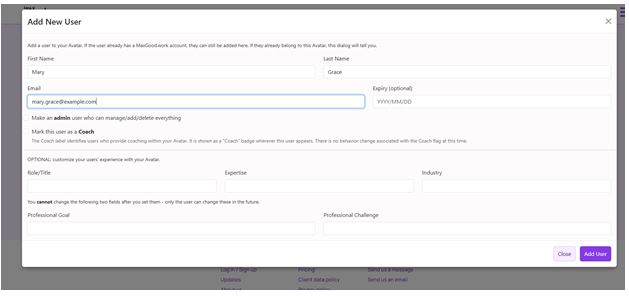
Add a user and set the details needed for their participation.
Assess One Change at Work
Keep the test focused on a behaviour you can observe. These are suggested targets, not customer results:
- Customer conversations: over two weeks, participants could prepare for two conversations per week and review whether they explained the issue clearly.
- Competing priorities: over two weeks, practise three discussions per participant and check whether each ends with an agreed priority.
- Service standards: after two weeks of practice, ask participants to explain how one standard applies to three realistic situations.
Review the outcomes with your staff and record the time you spend supporting the test. If conversations do not translate into useful action, revisit the goal, content or human support needed.
Your Tester Avatar is a place to begin exploring what AI coaching could contribute to your business. Choose one recurring staff development need, shape the Avatar around it and try a conversation. Then invite your team to help you see what works.
Get your free Tester Avatar and make it your own.
This post was written with assistance from a MaxGood.work Avatar. The ideas, structure, and editorial decisions are human-led.
