

How to Upload Content to Your Avatar Expertise (Part 1: Manual Content Upload)
Once your Avatar is aligned, the next step is adding your own content to its Expertise. Expertise is the content you upload to your Avatar. Your Avatar draws on it, and cites it, when it supports the people you serve. You add it in the Expertise tab of your Avatar Admin area on MaxGood.work.
This guide covers how to upload text and documents manually into your Avatar Expertise, and how to help your Avatar find the right content when it needs it.
Good to know: you do not need to cut your content into small pieces first. MaxGood.work splits what you upload into chunks automatically, and each chunk keeps the title of the document it came from. You can see every chunk in the Manage Contents window.
Steps for uploading content to your Avatar Expertise manually
1. Prepare your content
- Write each piece of content so it stands on its own: one topic, with a clear title.
- Use plain text or basic Markdown if you like. Use # for a heading and ** around words you want in bold.
- Name the problems the content addresses in the text itself, in the words your clients or team members would use.
2. Open the Expertise tab and add content to an Expertise Title
- Open the Expertise tab in your Avatar Admin area.
- Choose the Expertise Title that will hold the content, or add a new title. The title is the general name for everything you upload under it.
- Use Manage Contents in the actions for that title to open the Manage Contents window.
- Choose Upload Text to paste text, or Upload File to add a document.
2a. Upload text
- Choose Upload Text.
- Paste or type your content into the Content Text box.
- Check the Source Document Title. MaxGood.work suggests a title once there is enough text, and you can edit it or write your own. This is the name of this specific piece of content, such as an article or chapter title.
- Choose Upload Text to send it to your Avatar Expertise.
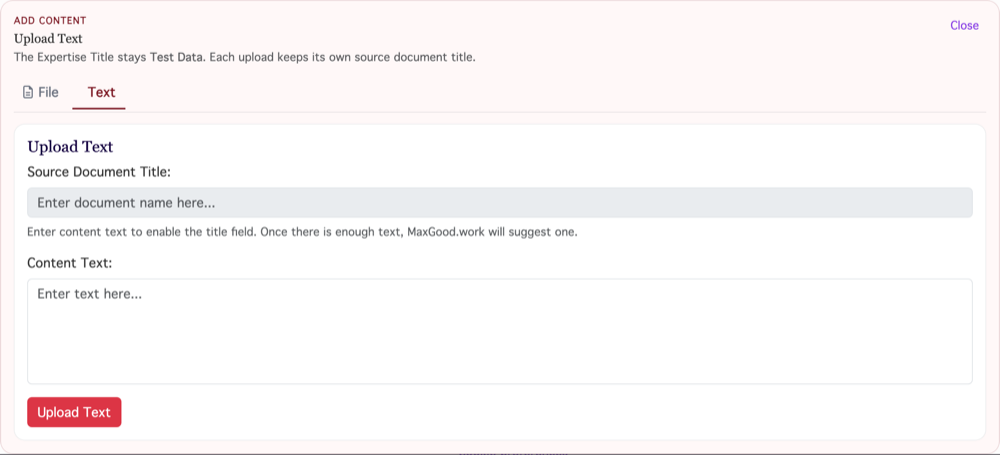
Watch how to add content to your Avatar Expertise using text upload
2b. Upload a document
- Choose Upload File.
- Choose the document to upload. The Manage Contents window lists the supported file types. Upload one file at a time.
- Choose Upload Contents. MaxGood.work converts the document to text and splits it into chunks automatically.
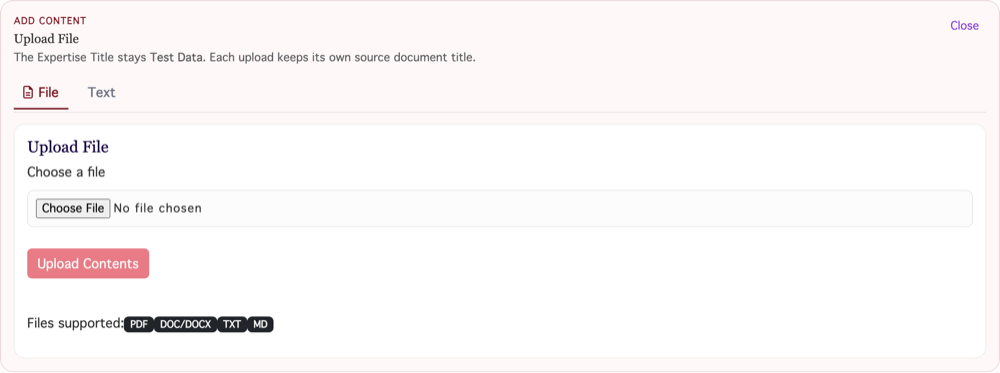
Watch how to add content to your Avatar Expertise using document upload
3. Write for retrieval
Your Avatar retrieves the chunks that match what a person asks, so the way you write decides how well it finds your content. Make each chunk say:
- When to use the content
- What problems it solves
- The topics it covers, for example people management or leadership
Put that context in the body of the text, near the top, where every chunk of the document can carry it.
4. Review your content chunks
After the upload, the Manage Contents window lists the chunks under the title. Use Preview on a chunk to read it, Edit to correct it, and Delete to remove it. In chat, your Avatar retrieves these chunks and cites them as references.
5. Test your Avatar
After uploading:
- Chat with your Avatar
- Review how it uses your content
- Adjust as needed
Test your Avatar before you invite the people you serve.
Try it yourself
Every new user gets a free Tester Avatar to use with a few clients. Sign in at maxgood.work/login, upload your first piece of Expertise, and see your Avatar use it. If you would like to see it with us first, you can request a demo.