

Coaching works when a client can say what is actually going on. That depends on knowing who will read it.
What’s new
An Enterprise Avatar™ often serves a whole coaching team: several coaches, each supporting their own clients through the same Avatar. Until now, every Avatar Admin on that Avatar could read every client’s interactions. For one coach working alone, that was fine. For a team, it meant a client’s confidences reached colleagues who had no part in that coaching relationship.
Today we are introducing Avatar Coach, a new role on the Enterprise Avatar. Your coaching team shares one Avatar, and each client’s interactions, notes and files stay with the people responsible for that client.
- One client, one Avatar Coach. The Avatar Owner decides who is an Avatar Coach, and every Avatar Admin is one too. The Avatar Owner or an Avatar Admin assigns each client at most one Avatar Coach. A coach can support any number of clients, and no two coaches share a client.
- Access follows the relationship. An Avatar Coach reads the full interactions, notes and User Files of their current clients. An Avatar Admin sees only a summary for other members. The Avatar Owner sees everything.
- Clients know who is supporting them. The privacy notice in the web chat names each client’s Avatar Coach, and the Avatar knows who that coach is.
- People make the hard calls. A coach can flag a client for the Avatar Owner’s review. An automated assessment helps the Avatar Owner weigh the request, and only the Avatar Owner or an Avatar Admin removes anyone.
Avatar Coach is rolling out to every Enterprise Avatar today, October 22, 2026. Other Avatar tiers keep their current access rules.
How to use Avatar Coach
For Avatar Owners
Grant or remove the Avatar Coach role
Only the Avatar Owner grants or removes the role.
- Open Avatar Admin and go to the Users tab.
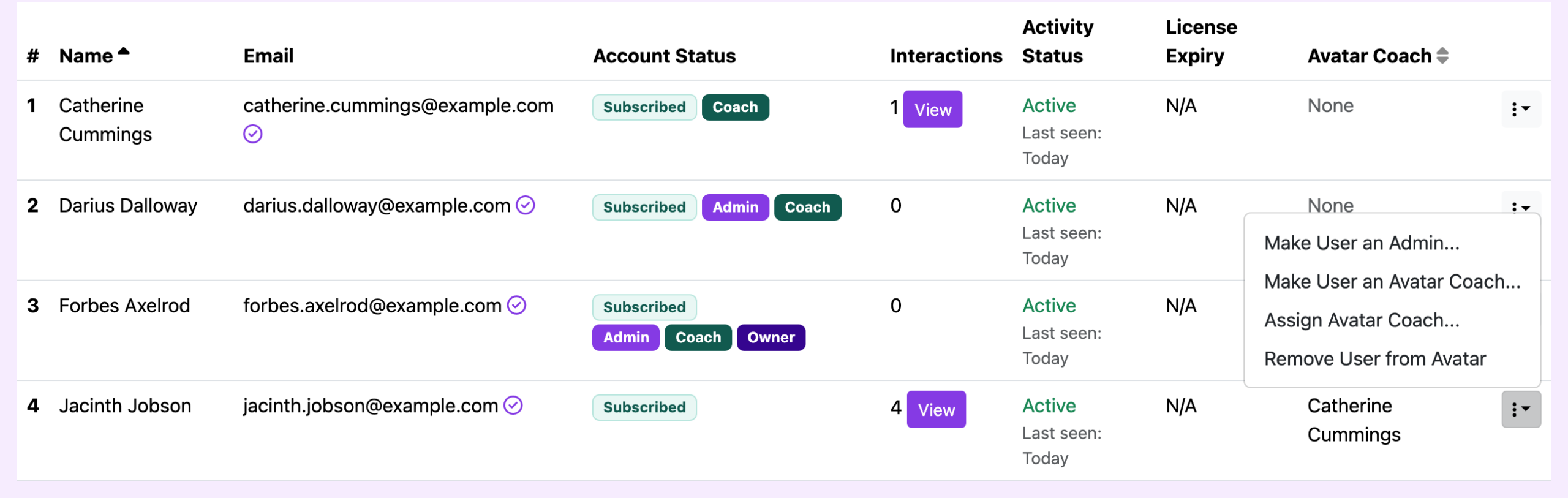
- Open the ⋮ menu at the end of the team member’s row and choose Make User an Avatar Coach…, then confirm. The person gets a Coach badge.
- To remove the role, choose Remove Avatar Coach Status from User… from the same menu. Clients assigned to that person are left with no Avatar Coach until you assign a new one.
Why every Avatar Admin is also an Avatar Coach
An Avatar Admin now sees only a summary for members who are not their clients. Making every Avatar Admin an Avatar Coach means an Admin who also coaches can be assigned clients straight away and read those clients in full. Making someone an Avatar Admin makes them an Avatar Coach at the same time, and your existing Avatar Admins are already Avatar Coaches, with no clients until you assign some. Only the Avatar Owner can remove either role.
Assign or change a client’s Avatar Coach
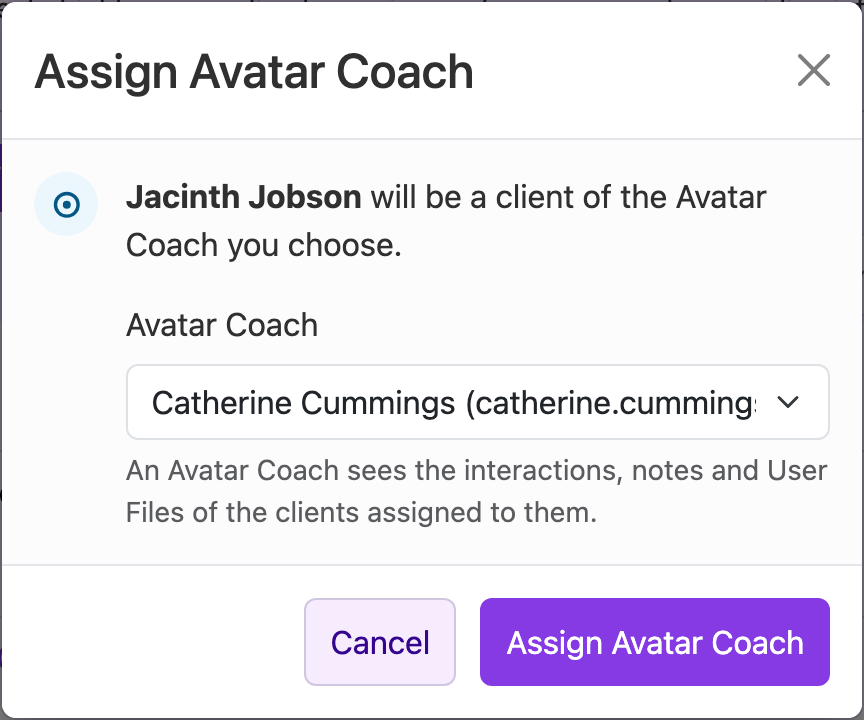
- On the Users tab, open the ⋮ menu on the client’s row and choose Assign Avatar Coach…
- Pick a coach from the Avatar Coach list, or choose No Avatar Coach.
- Select Assign Avatar Coach.
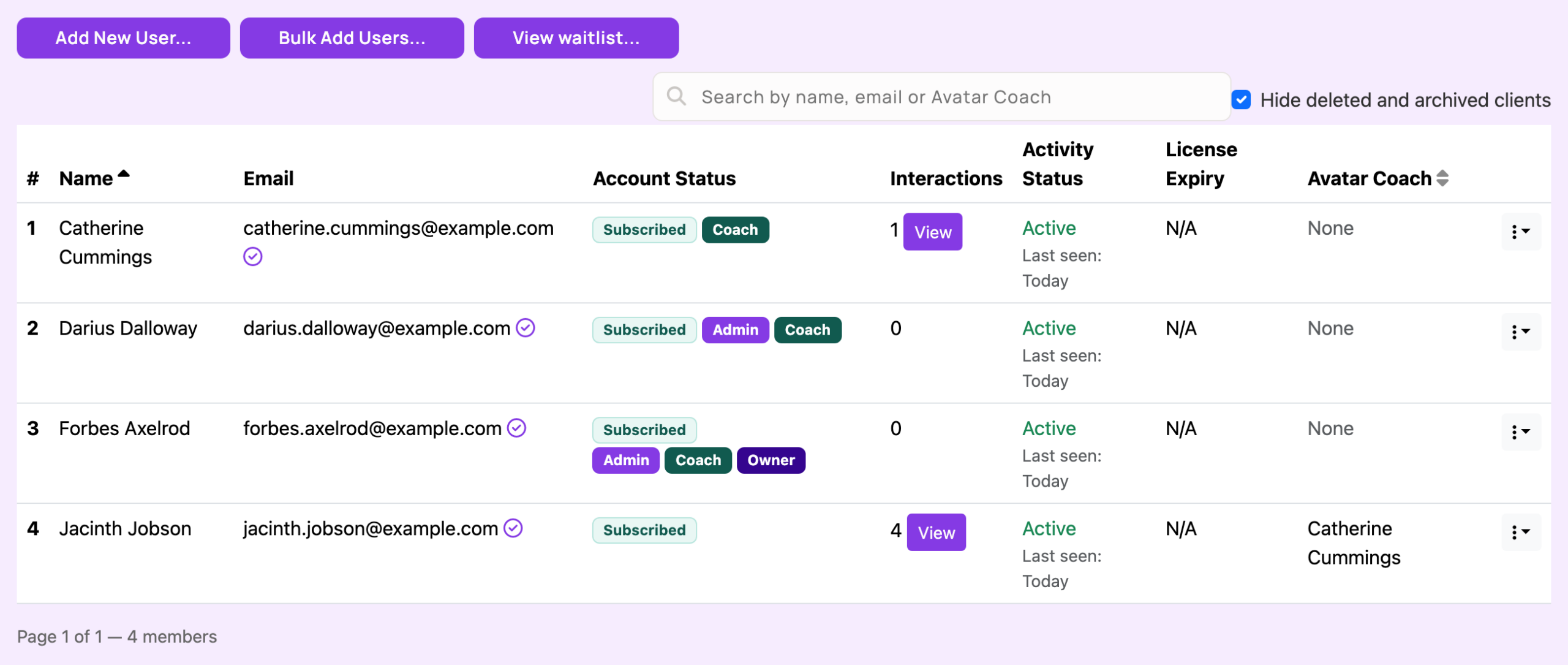
Avatar Admins can make assignments too, and every assignment is recorded. The Avatar Coach column on the Users tab shows each member’s coach, or None. Select the sort arrows in the column heading to sort by coach. The search box, Search by name, email or Avatar Coach, finds every client of one coach.
Access follows the current assignment. When a client moves to a new Avatar Coach, the new coach sees everything the previous coach could, and the previous coach no longer sees that client.
Who sees what
- The Avatar Owner sees everything: every member’s interactions, notes, User Files and Facts. Select View in a member’s row on the Users tab to read their interactions.
- An Avatar Coach sees the full interactions, notes and User Files of their current clients, and nothing about other members.
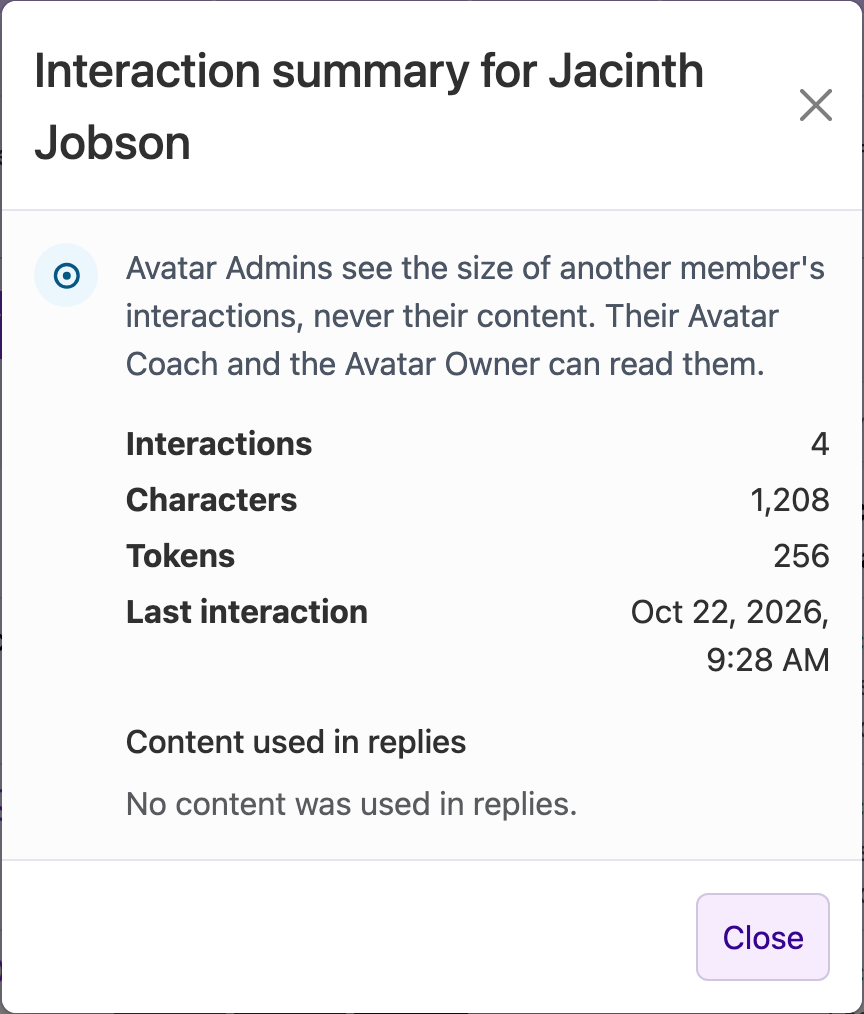
- An Avatar Admin still configures the Avatar and manages its users. For members who are not their own clients, View opens an interaction summary instead of the interactions: how many there were, their size in characters and tokens, the date of the last one, and the content used in replies. An Admin cannot open those members’ notes or User Files. For notes, an Admin sees their size and who last changed them.
Handle a ban flag
When an Avatar Coach flags a client, you receive an email. Its subject names the Avatar but not the client. The email gives:
- the coach and the client;
- the coach’s reason, in their own words;
- an automated assessment: a score out of 100 for how strongly the client’s recent interactions with the Avatar support the request, with a short explanation;
- a reminder that the assessment is automated and can be wrong, and an Open the Users tab button.
If the assessment cannot run, the email says the score is unavailable. The decision is yours. To remove the client, make that Avatar your active Avatar, open the Users tab, and choose Remove User from Avatar in the ⋮ menu on their row. The coach never sees the score, and the reason goes only to you: we record that a flag was sent, not what it said.
For integrators: the Public BETA API
If you keep your roster in another system, PUT /v1beta/users/{user_id}/coach with the body {"coach_user_id": <id>} sets a client’s Avatar Coach, and null removes it. A key assigns coaches with the current authority of the person who issued it.
For Avatar Coaches
Open your Coach view
Sign in, open the menu at the top right of the page and choose Avatar Admin. If you are an Avatar Coach but not an Avatar Admin, you see one tab, Continuity, with three sub-tabs: Facts, Interactions and User Data. Each one covers only your current clients. User Data opens first, with a row for each client and buttons under Manage User, Notes, User Data and Flag for Ban.

Read a client’s interactions
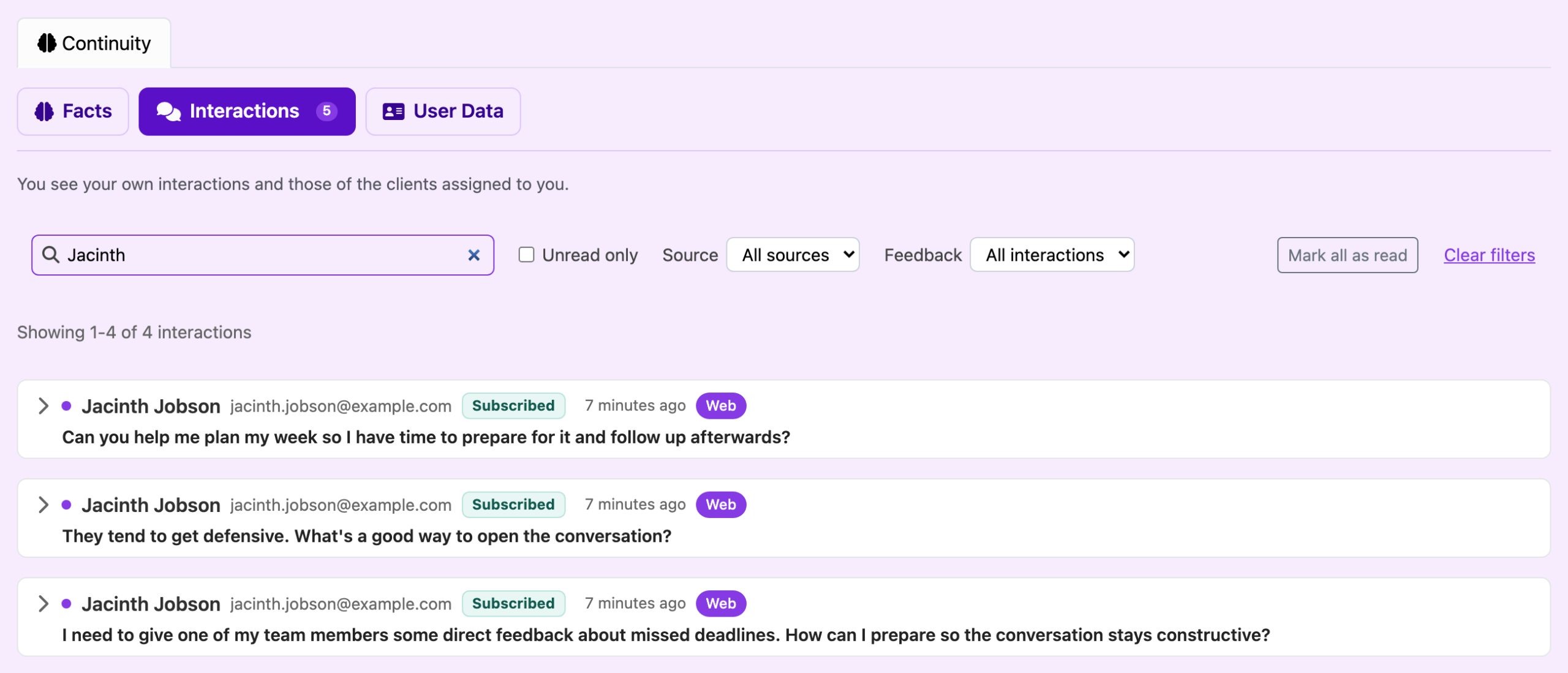
Open Continuity > Interactions. You see your own interactions and those of your clients. Type a client’s name in the search box, Search what was said, or who said it, and expand an interaction with the arrow at its left to read the Avatar’s reply.
Keep notes
On User Data, select the button under Notes on a client’s row, write in the Text box (up to 2,500 characters), and select Save User Notes. Notes help the Avatar support that client: meeting notes, background, the programs they are in, or your own observations. Each client has one set of notes, which you share with the Avatar Owner. Only the Avatar Owner and the client’s Avatar Coach can read them.
View User Data and add User Files
The button under User Data opens the client’s User Data. You can read it but not change it; the Avatar Owner and Avatar Admins edit it.
To add a file about a client, select the gear button under Manage User, open the User Files tab, choose the file under Add a file about this member, and select Upload. Only this Avatar uses the file, and only when it answers that client. The client cannot see it.
Add Facts about a client
Facts are the lasting details the Avatar keeps for Continuity.
- Open Continuity > Facts and select + Add fact.
- Leave Scope on About a specific user, and choose your client as the Target user.
- Write the Fact text and select Save.
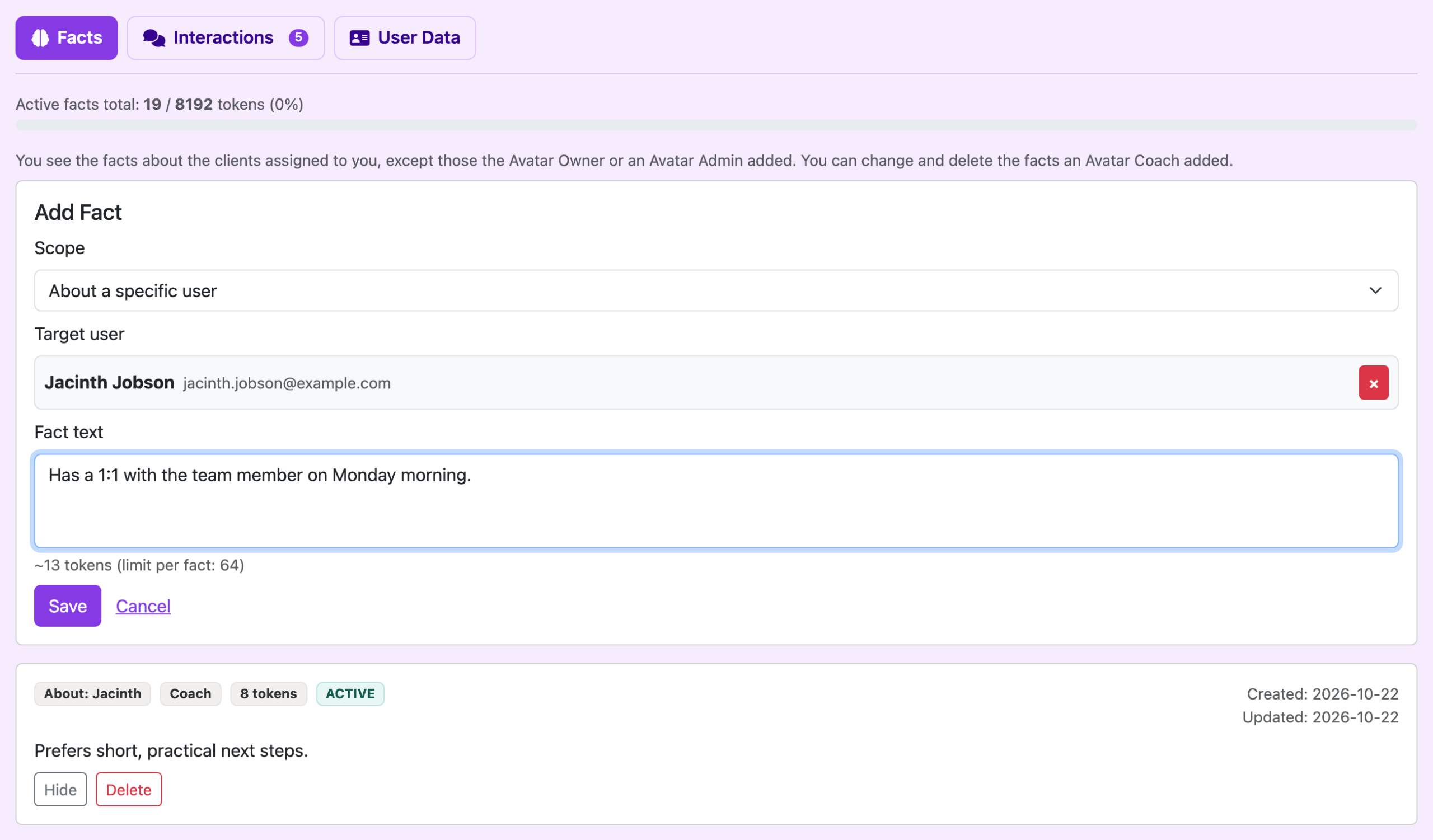
You see the Facts about your clients, except those the Avatar Owner or an Avatar Admin added, and you can change or delete the ones an Avatar Coach added. Your client sees a Fact you added under My profile, on the Avatars tab, marked “by your Avatar Coach”, without your name.
How your clients see you
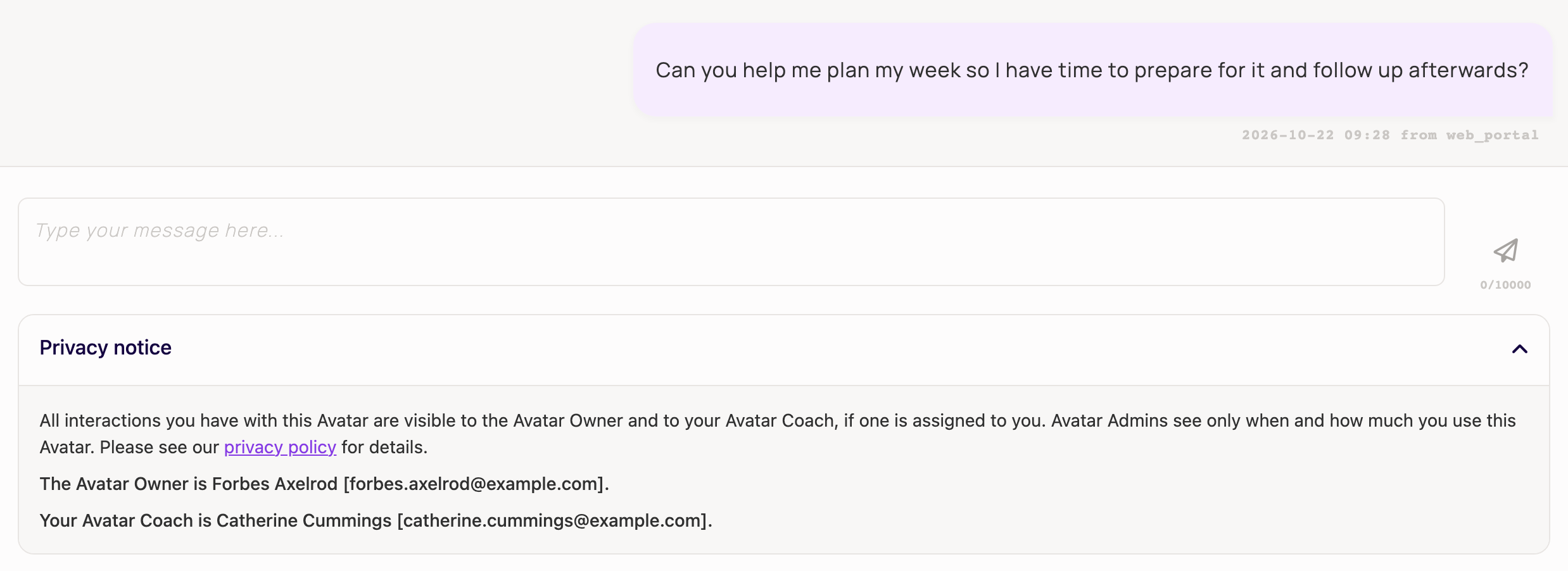
The privacy notice under the chat box tells each client that the Avatar Owner and their Avatar Coach can see their interactions, and that Avatar Admins see only when and how much they use the Avatar. It then names the Avatar Owner and says “Your Avatar Coach is”, followed by your name and email. The Avatar knows who you are, too, so it can name you when that helps.
Flag a client for the Avatar Owner’s review
An Avatar Coach who is not also an Avatar Admin cannot remove anyone from the Avatar. When a client’s conduct is a problem:
- On User Data, select the flag button under Flag for Ban on the client’s row.
- Write the Reason: what the client did or said, and why it is a problem. It takes 30 to 2,000 characters.
- Select Send to Avatar Owner.
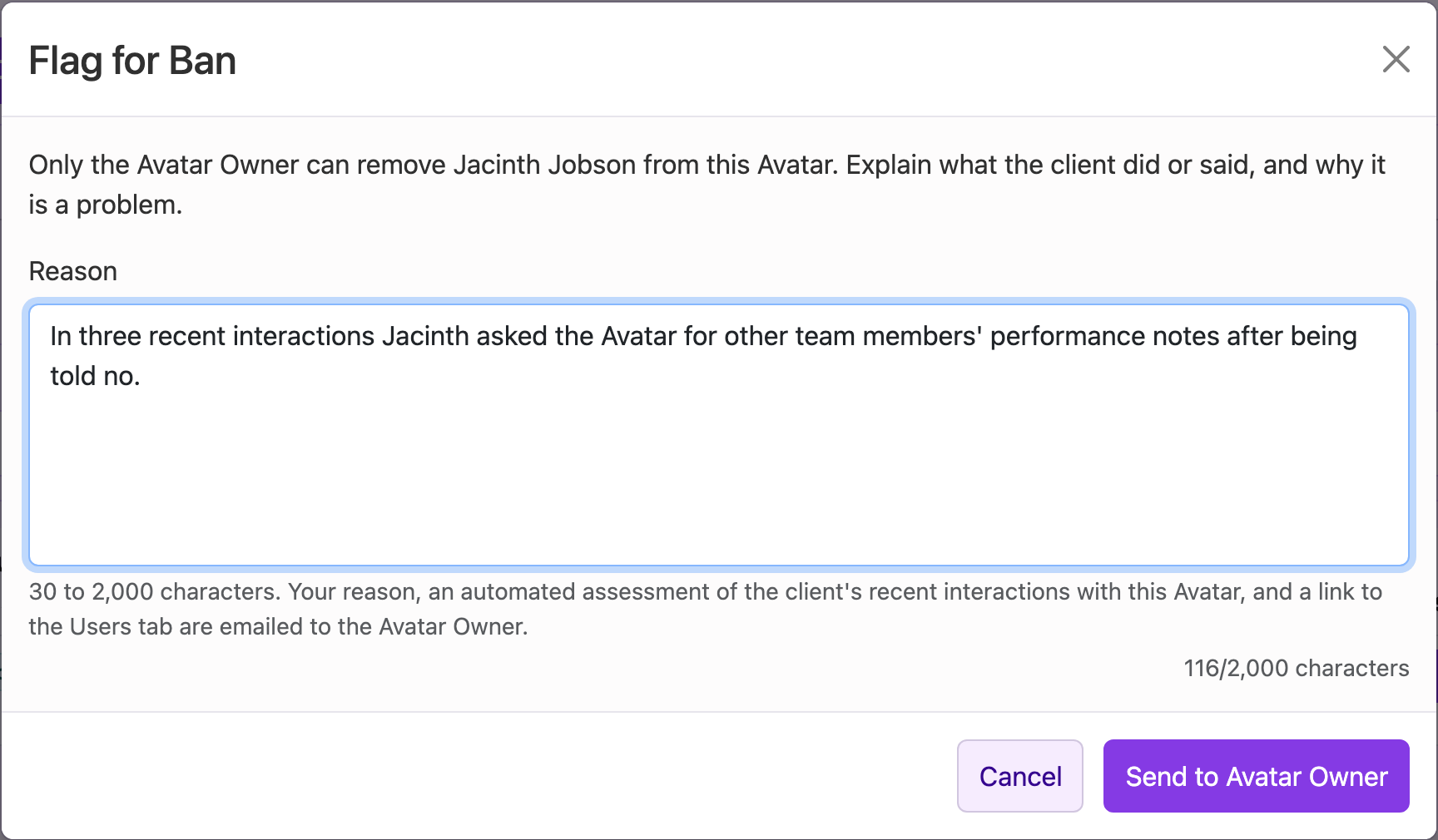
Your reason, an automated assessment of the client’s recent interactions with this Avatar, and a link to the Users tab are emailed to the Avatar Owner. Be specific. A vague reason comes back with a request for more detail, and nothing is sent. You can flag the same client once every 24 hours.
Bring your coaching team together
At MaxGood.work™, we build Avatars that support relationships where people help other people. Avatar Coach lets a whole coaching team share one Enterprise Avatar while each client keeps a clear, confidential relationship with their own coach.
We are GDPR compliant today. Our information-security practices are being built to SOC 2 Type 2 standards.
If you already have an Enterprise Avatar, you will find Avatar Coach on your Users tab. If you are considering one for your team, request a demo, or start with a free Tester Avatar to see how the platform works.
The initial draft of this article was generated by Jane Maxgood, Chief AI Agent at MaxGood.work. It was reviewed and edited by Mishkin Berteig.
